"A human being should be able to change a diaper, plan an invasion, butcher a hog, conn a ship, design a building, write a sonnet, balance accounts, build a wall, set a bone, comfort the dying, take orders, give orders, cooperate, act alone, solve equations, analyze a new problem, pitch manure, program a computer, cook a tasty meal, fight efficiently, die gallantly. Specialization is for insects." (Robert A. Heinlein)

Saturday, 18 February 2012

Linux Mint (on the EEEPC): fixing some post-installation issues

The installation (upgrade) of Linux Mint 12 on my EEEPC left the system with some little problem to be solved together with many applications that had to be reinstalled. Not all of these problems are Mint-specific since one, at least, hat its solution reported on a Ubuntu forum. And I'm not also sure if these problems appears after upgrading from Ubuntu to Mint 12 or after a fresh installation too. By the way all have been solved with a couple of shell commands. I spent more time looking for solutions than executing them, so I hope it might be useful to have them all in the same page.

Missing Windows boot option

The first thing I noticed once I rebooted the EEEPC just after installing Linux Mint was that the Windows boot opting was missing from the Grub boot menu. After a brief looking for it in the 'net I did find on Mint forum a couple of commands to solve it:
sudo os-prober
sudo update-grub

Friday, 3 February 2012

Mint me too!

Upgraded from Ubuntu 10.04 LTS to Mint 12
 
At last I decided to upgrade my EEEPC 900! The Ubuntu installation I was still using on it (10.04 LTS Netbook edition) was getting old so, after many live testing, and some “Test Drive” post I settled for installing Linux Mint 12 “Lisa”.

Why Mint?

If you read my post about Linux Mint test you'll have certainly noticed that it impressed me quite well. I mostly liked the Mint approach to user interface both open to innovation and respectful of old users. But what eventually led me towards a Gnome3 based distribution has been discovering, thanks mainly to Linux Mint, how this desktop environment can be expanded. I discovered, in fact that Gnome3 can be expanded using Javascript programming. Many extension are being developed and can be downloaded and installed from a Gnome3 page. Plenty of documentation and examples are available. Gnome3 guys didn't give of flexibility that had been Gnome2 characteristic, they just left it well hidden.

Installation

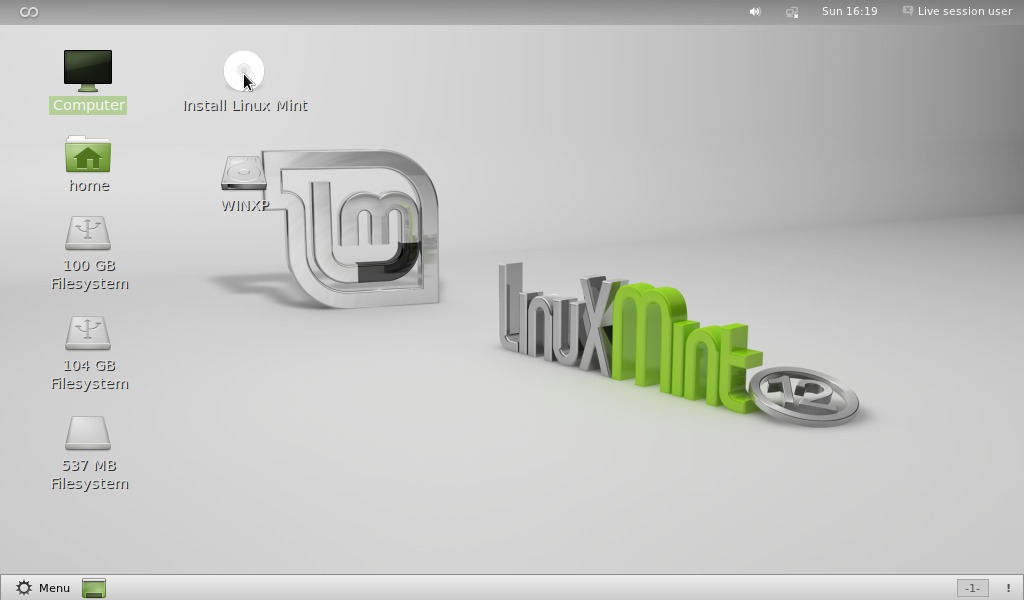
I prepared the installation, like usual, by writing a bootable SD card with Ubuntu's start-up disk tool. I then booted the EEEPC and started the installation program.

Friday, 20 January 2012

Recovering photos from a damaged SD Card (again)

It happened again! I suppose it's because of some hardware problem but my old Sempron 2400, every now and then, makes unreadable a SD card while I'm reading it. This time the damage had been particularly nasty since the recovery method I usually apply (using foremost command) only recovered a handful of of files before stopping because of a “write error”. I so tried another recovery program: Photorec.

Installation and recovery

Photorec is part of the Testdisk disk recovery package it can be installed form Ubuntu's software centre or with apt-get command
sudo apt-get install testdisk
once installed Photorec can be executed by command line
sudo photorec
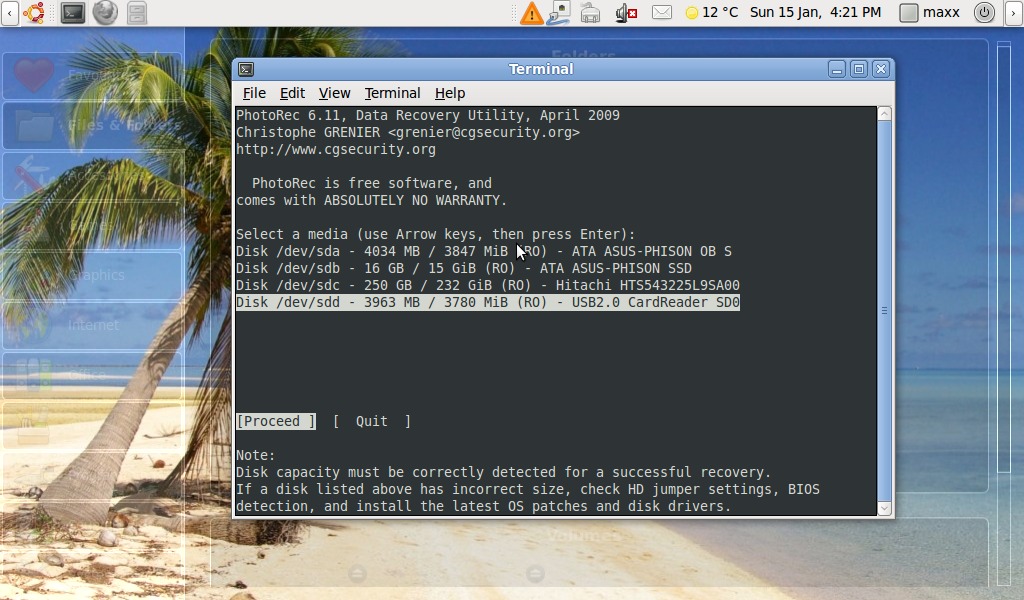
Photorec has a simple but effective character interface with a wizard-like organization: at first I've been asked for the device to recover

then the partition type, I selected “Intel”

Tuesday, 10 January 2012

Backing up the EEEPC with SystemRescueCd

I'm going to upgrade my EEEPC Linux installation, at last. Before doing any big operating system change It's a good practice to make a full backup of the system partition. Just in case something goes wrong and you want back your old working system. Dedicated Linux distributions are the ideal solution for partition backup and recovery since they let you easily recover even from a non-starting system situation. Last time I backed up my system partition, when I switched from Xandros to EEEBuntu I used Clonezilla. This time I decided to use a more flexible distribution: SystemRescueCd.

Installation


Like its name may suggest SystemRescueCd is a small Linux distribution specifically designed for disk recovery tasks, and it's provided with some invaluable (life saving) tools like GParted or Partimage. I downloaded SystemRescueCd ISO image from its download page then prepared a bootable USB disk following the site how-to.
First I mounted the ISO image
sudo mount -o loop,exec ./SystemRescueCd-x86-2.4.0.iso /tmp/sysrescd/
then I started the USB installation script from the mounted ISO image
cd /tmp/sysrescd/
sudo ./usb_inst.sh
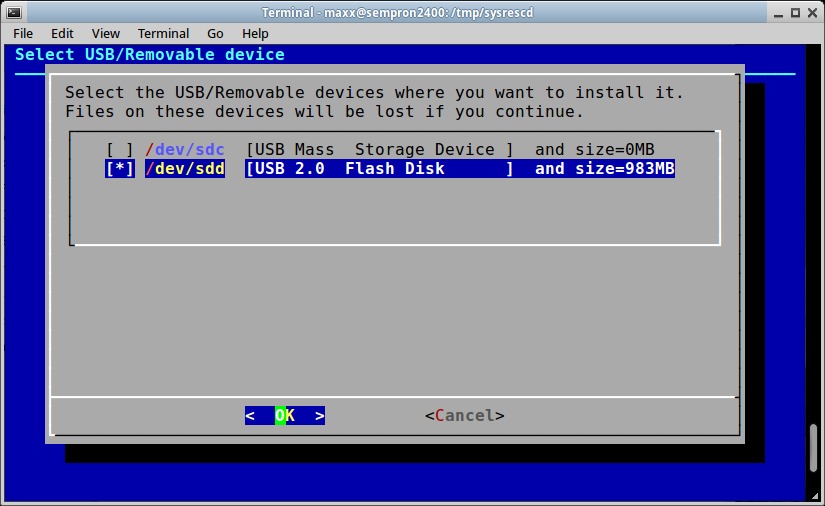
a simple but effective interface shows-up there I selected the USB disk device and let the installation start.

It may happen that the Installation interface shows your device with a 0MB disk size and then exits with an error message when you try to install. This can be easily solved (thanks to this forum post) by manually unmounting your device using the console command.
umount /dev/sdd1