HAPPY EASTER!

Friday, 22 April 2011

Tuesday, 19 April 2011
Test drive: Ubuntu (and Xubuntu) 11.04 beta on the Sempron 2400

While waiting for the Ubuntu stable release I continued trying live beta versions on my computers. This time I put the downloaded ISO images on a USB drive in order to test them on my old desktop computer (a Sempron 2400). Live CD editions combined with USB drives give us an extremely powerful and inexpensive way to have a reasonable preview of how a new release or distribution will behave on our system.
Ubuntu 11.04
I used the same disk image I previously used to test Ubuntu on my EEEPC. Once launched the system started with a standard Gnome desktop. It seems that my system configuration is not supported by Unity. May be Unity 2D version will work even on my old configuration, I didn't test it. I'm still not a big fan of Unity so … I don't miss it very much.
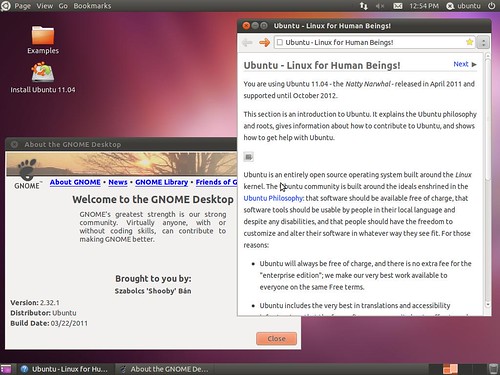
The system runs fine. The most visible difference is probably the menu bar stuck, by default, on the top-left side of the screen. A solution that can save some pixel on smaller screens but definitively pointless, if not annoying, at higher resolutions.
Thursday, 7 April 2011
Test drive: Ubuntu 11.04 “Natty Narwhal” Beta on the EEEPC 900

Again, with the coming of spring, also Ubuntu upgrade season is arriving. Last upgrade season left me quite unhappy since the new Ubuntu user interface “Unity”, released with the netbook edition performed very poorly on my EEEPC. Now the new release has reached the beta stage and I decided to try it, in live mode, to see if any improvements have been made.
Download and install
First impressions
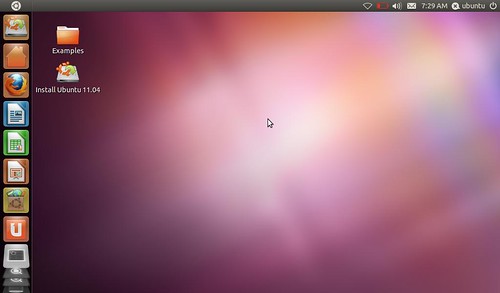
Here is how the new release looks like:
Friday, 25 March 2011
Upgrading to Firefox 4 on Ubuntu and the EEEPC
Just a short post to report my impressions on the just released version 4 of Mozilla's browser. As soon as I realized a stable version has been released I decided to install it on the EEEPC 900.
Download and Installation
Mozilla download page offers, for Linux computers, a tar archive installation option but for Debian based distribution a repository is also available. Plenty of sites reports installation instructions I got them from here.
So installing Firefox has been matter of simply typing the following command in the console:
sudo add-apt-repository ppa:mozillateam/firefox-stablesudo apt-get updatesudo apt-get install firefox
First impressions
Here is how Firefox 4 looks like.
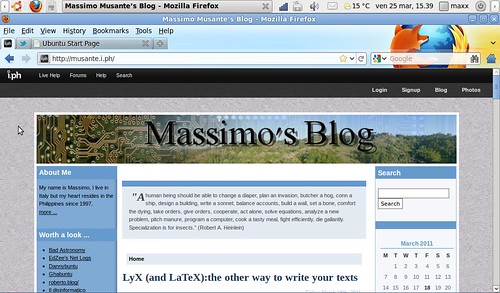
On Mozilla web page they say the new Firefox is six time faster than the previous version, may be it doesn't look exactly six time faster when you use it but it appears faster without doubt. Compared to Google Chrome pages loading times seem to be almost the same, but Chrome is still more responsive on more Javascript filled pages, I'd say that Firefox has almost filled the gap to Google rival. By the way, whatever you choose, it's good to have the problem of choosing. Especially speaking about browsers.
Update
Since I had some comments about it, let me explicitally remind that these instructions (should) work with Ubuntu. Installing Firefox on the EEEPC's original Xandros installation, if possible, is a different thing. Like I did already write in comments you can try the script posted here (the page is in Italian), or you can think about installing another Linux distribution like Ubuntu or Puppy Linux.
Friday, 18 March 2011
LyX (and LaTeX):the other way to write your texts
Talking about word processors is often limited to never ending discussions about Microsoft Word and Open Office writer. It happens then you learn that many people who has very intensive writing needs uses very different tools and you end by discovering, or I might say re-discovering, a completely different way to write. The tools I'm talking of are the markup typesetting languages like LaTeX and DocBook. In order to use this kind of programs you have to write your text almost like a computer program, using a set of commands to define chapters, character styles and so on. Here is how the beginning of this text may look like in LaTeX:
...\begin{document}\title{\LyX{} (and \LaTeX{}):the other way to write your texts}\author{Massimo Musante}\maketitle\section*{Introduction }Talking about word processors is often limited to never-endingdiscussions about Microsoft Word and Open Office writer. It happensthen you learn that many people who has very intensive writing needsuses very different tools and you end by discovering, or I might sayre-discovering, a completely different way to write. The tools I'mtalking of are the typesetting languages like \LaTeX{} and DocBook.In order to use this...
I had my first experiences with a similar program, Troff, when I was studying (there are few ways to write a document from a green-phosphors VT100 terminal). Learning curve had been quite steep and when new computers with more modern word processors where made available I quickly dismissed these languages as relics from past. After many years I learn that old typesetting languages have evolved, some new has been developed and many people continue using them. I so decided to have a look to the LaTeX universe to understand if it's still a viable way to write your texts and if the learning curve has been some-way made easier. After a brief research on the Internet I discovered LyX, a writing software that promised to make writing a document with LaTeX as easy as using any other word processing application. I so installed LyX, easily from Ubuntu's software center, and started trying it by writing this post with it.
WYSIWYG vs WYSIWYM
Word processing software we are used to know, like Open Office Writer, are usually referred as WYSIWYG (What you see is what you get) since they show you in the screen how your document will appear once printed. by contrast other writing software like LyX has been called WYSIWYM (What you see is what you mean) since what they show you on screen is e representation of document's logical structure (sections, chapters ...) of representing its physical layout. The WYSIWYM concept works great when the content of your text is preponderant above its layout. For example if you're writing a book or an article you're going to use an handful of text styles over all the document but it will be fundamental using them in a consistent way. On the other hand if your are writing documents where layout is preponderant, like leaflets, the better feedback with the document final layout will probably make you save time. The major drawback of using WYSIWYM concept has ever been the steep learning curve of typesetting markup languages ... at least until now.
Subscribe to:
Posts
(
Atom
)