"A human being should be able to change a diaper, plan an invasion, butcher a hog, conn a ship, design a building, write a sonnet, balance accounts, build a wall, set a bone, comfort the dying, take orders, give orders, cooperate, act alone, solve equations, analyze a new problem, pitch manure, program a computer, cook a tasty meal, fight efficiently, die gallantly. Specialization is for insects." (Robert A. Heinlein)
Showing posts with label EEEPC. Show all posts

Wednesday, 4 January 2017

Test drive: (Raspberry PI) Pixel on the EEEPC 900


I own a Raspberry PI since two years but I used it as headless server from the very beginning. I have, almost, never seen its window manager apart from some remote desktop experiment. I so learned only recently how latest Raspbian released are shipped with a new lightweight desktop environment: Pixel. More recently I also learned that Pixel has been released for X86 “common” computers I decided to test how it runs on my EEEPC 900 netbook.

First impressions

I downloaded Pixel ISO disk image from here and prepared a bootable USB disk. Raspberry page suggested using Etcher to prepare the boot disk but UNetbootin did the job as well as usual.
The boot process went smooth and quite fast, and Pixel here is my very first screen-shot of Pixel.

Wednesday, 21 September 2016

Netbeans 8.1 on the EEEPC 900


It's quite recent in the news that Netbeans, the Oracle Java IDE, is going to pass under the Apache wing. The immediate effect of this news has been to remind me to upgrade my EEEPC Netbeans installation.


Installation and first run


Netbeans for Linux is provided in the form of an auto-installing executable script, once downloaded I started it from shell:
chmod +x netbeans-8.1-javase-linux.sh
sudo ./netbeans-8.1-javase-linux.sh
when started with the “sudo” command the installation script install Netbeans into the “/usr/local” directory otherwise the script will install in your home directory.

Thursday, 28 July 2016

Test Drive: Linux Mint 18 “Sarah” on the EEEPC


It has been some time since my latest “test-drive” of a linux distribution on the EEEPC. I must be honest about it: the EEEPC is getting everyday older and I’m slowly loosing interest in improoving its use. By the way afrer reading of the newly released Linux Mint version, powered by Cinnamon 3.0, I’ve been tempted to write a live disk on my USB stick and try how it performs on my old netbook.

First impressions

After boot Linux Mint starts with the usual, “good-old” fashioned, Cinnamon desktop
Cinnamon applications menu offers a modern interface to start applications with all features a good application launcher need

Friday, 27 May 2016

Upgrading (the EEEPC) with low disk space


When, while installing Xubuntu, I decided EEEPC disk partitioning I based my decision on previous installation typical disk usage worrying mostly about “/home” and “/usr” partitions. I never would have thought about running out of space in the root “/” partition.
Then, the first time I tried to upgrade to latest Xubuntu distribution I got an error message about disk free space on partition being not enough to download distribution files (that usually take a little less than 1GB of disk space). Examining disk free space I discovered that very little free space was left on the root partition even if it was more then enough after my post-installation check.
Fortunately AskUbuntu came quickly at recover: here I quickly found a question asked from who had the same problem. To be precise the question was about problems with “/boot” partition low disk space bat I suppose it was because of a different partitioning schema, by the way solution worked for me.

Cleaning “apt-get” leftovers

As I learned from AskUbuntu question some of the “lost” disk space might be occupied by unused files or apt-get temporary files. So simply by executing the following commands …
sudo apt-get autoremove
sudo apt-get clean
some disk space can be set free.

Removing old Linux kernel images

If free space gained from the previous operation isn't enough some more space can be obtained by removing old Linux kernel images. Every time Ubuntu upgrade to e new kernel release the old one is kept available in to be used to solve possible compatibility issues. Such feature is scarcely user and is of no use at all in the eve of a major distribution upgrade.
First the currently used Linux kernel must be identified the command …
uname -a
does the job, here is the current output
Linux eeepc900 4.4.0-21-generic #37-Ubuntu SMP Mon Apr 18 18:34:49 UTC 2016 i686 i686 i686 GNU/Linux
while the command …
dpkg -l 'linux-image*'
lists all Linux kernel images currently installed, here is a sample output:
Desired=Unknown/Install/Remove/Purge/Hold
| Status=Not/Inst/Conf-files/Unpacked/halF-conf/Half-inst/trig-aWait/Trig-pend
|/ Err?=(none)/Reinst-required (Status,Err: uppercase=bad)
||/ Name Version Architecture Description
+++-==============-============-============-=================================
un linux-image <none> <none> (no description available)
un linux-image-3. <none> <none> (no description available)
rc linux-image-3. 3.19.0-15.15 i386 Linux kernel image for version 3.
rc linux-image-3. 3.19.0-28.30 i386 Linux kernel image for version 3.
rc linux-image-3. 3.19.0-33.38 i386 Linux kernel image for version 3.
rc linux-image-3. 3.19.0-43.49 i386 Linux kernel image for version 3.
ii linux-image-3. 3.19.0-56.62 i386 Linux kernel image for version 3.
ii linux-image-4. 4.2.0-34.39 i386 Linux kernel image for version 4.
ii linux-image-4. 4.4.0-21.37 i386 Linux kernel image for version 4.
rc linux-image-ex 3.19.0-15.15 i386 Linux kernel extra modules for ve
rc linux-image-ex 3.19.0-28.30 i386 Linux kernel extra modules for ve
rc linux-image-ex 3.19.0-33.38 i386 Linux kernel extra modules for ve
rc linux-image-ex 3.19.0-43.49 i386 Linux kernel extra modules for ve
ii linux-image-ex 3.19.0-56.62 i386 Linux kernel extra modules for ve
ii linux-image-ex 4.2.0-34.39 i386 Linux kernel extra modules for ve
ii linux-image-ex 4.4.0-21.37 i386 Linux kernel extra modules for ve
ii linux-image-ge 4.4.0.21.22 i386 Generic Linux kernel image
eventually older kernel images can be removed with an “apt-get” command like the following, changing of course the version number
sudo apt-get -y purge linux-image-x.yy.z-tt-generic linux-image-extra-x.yy.z-tt-generic linux-headers-x.yy.z-tt linux-headers-x.yy.z-tt-generic
If you look deeper in AskUbuntu answer you'll see that more complex scripts can be used to make the operation faster. I stopped here, I don't like automating too much when deleting things and, after all, this it's I problem I get into at most twice a year. So … I can do it manually

Friday, 31 July 2015

Test Drive: Ubuntu Mate 15.04 on the EEEPC 900


Ubuntu Mate is a Ubuntu derivative distribution equipped with Mate desktop environment. Ubuntu Mate has been recently admitted among the official Ubuntu derivatives, I've been reading some very positive post about it so I decided for giving it a quick (live) look on the EEEPC even if I had already reinstalled my netbook computer with Xubuntu,

First impressions

After the usual process of preparing a USB disk an booting the netbook from it I've been welcomed from a very Gnome-2-looking interface.
The default interface provide the usual Applications, Places and System menus:

Friday, 20 March 2015

Test Drive: Xfce (Xubuntu) on the EEEPC 900

As promised in previous post I continued in my touring about testing lightweight desktop environments on the EEEPC. This time I installed on my netbook the most famous lightweight desktop: Xfce.
I've been using Xfce for many years on my, now dismissed, old Sempron 2400 desktop computer. I never worked with it on the EEEPC. At the time the EEEPC was my “fastest” computer and Gnome used to work fine enough on it.

Installation and first impressions

I installed Xfce from shell by simply typing:
sudo apt-get install xubuntu-desktop
After the installation process competed I logged off from the Gnome-Shell session and logged back in after selecting Xfce (Xubuntu Session) as desktop environment.
Here is the Xfce just after logging in:

Thursday, 12 March 2015

Test Drive: Ubuntu-Gnome 15.04 (Beta 1) on the EEEPC 900

As my hardware is getting old I start living the usual “Upgrade season” with more anxiety than eagerness. The question “Will the computer still work with the new release” becomes every year more fundamental and eventually I enter in a sort of “No-news-good-news” spirit where shorter new features list are welcomed while every novelty is looked with suspicious.
So I downloaded the newly released Ubuntu-Gnome 15.04 (Vivid Vervet) in order to test it on my old netbook mostly to see if it would continue working properly after being upgraded.

The test

I booted the EEEPC from my USB disk and, after a quite short boot time, I've been taken to the usual “Install or Try it” welcome screen:

Sunday, 25 January 2015

Test Drive: Lxde (Lubuntu) on the EEEPC 900


My good old EEEPC netbook is, day by day, getting too old. Apart from usual aging hardware problems, like the decreasing battery capacity, also the software side is worsening at every update. I still have the latest Ubuntu release installed but Gnome-Shell is showing a persistent delay in responding to some mouse actions like opening menus or showing the activities screen.
I decided for giving a look to some of the so called “light-weight” desktop engine in order to possibly completely or partially replace Gnome-Shell.

Lxde (Lubuntu-desktop)

Lxde is, together with Xfce, among the most famous lightweight desktop environments. I decided to install it on my netbook instead of performing my tests with a live disk like I usually do. This should let me obtain a more accurate and realistic test. I'm not too worried about leaving my system too “dirty” since I'm probably going to re-install the whole operating system on the EEEPC once I'll have come to a decision.
I so installed Lxde trough the apt-get command:
sudo apt-get install lubuntu-desktop
then I logged out from Gnome-Shell and logged back in after selecting Lxde from the login menu. Lxde offers, in the login menu, selection between two desktop modes: the “classic” (Lubuntu) and the netbook (Lubuntu-Netbook) mode.

Lxde “Classic” mode

The “Classic” Lxde desktop shows a Gnome-2-like user interface with a bottom panel and a bottom-left program launcher menu.

Thursday, 4 September 2014

Test Drive : KDE Plasma 5 on the EEEPC

I like KDE from a theoretical point of view: I especially appreciate its philosophy about flexibility and configuration capabilities. On the other hand, on the practical side, I never felt comfortable using it even if I tried more than once. By the way after reading the recent news about new KDE “Plasma” version 5 I decided it was worth giving it a look.
I so downloaded the “Neon 5 Project” live disk image, based on Kubuntu, available on KDE site and put it on my USB disk using Ubuntu start-up disk creator tool.

First impressions

I tested the newly prepared USB disk both on my desktop computer and on my netbook. KDE worked fine, of course, on the Veriton desktop but I was surprised to find I worked decently even on my old EEEPC.
At boot the EEEPC show an error about a Kwin unexpectedly closing, whatever causes it KDE starts and it seem to work normally.
the desktop is organized in a very traditional way with a functional “start” menu on the lower left:

Wednesday, 2 July 2014

Test Drive: Linux Mint 17 “Qiana” on the EEEPC 900


Some time after Ubuntu release also Linux Mint has came out with its latest version: number 17 codenamed “Qiana”. Even if a little late since the release date I decided to give Mint Qiana a quick look by running it live on the EEEPC. I've been a Mint user for a while, what mostly interest me is to observe evolution of Mint desktop: Cinnamon. The EEEPC 900 is getting old and, even if it's still functional, Gnome Shell is getting less responsive every update. I was so thinking about switching to a lighter window manager.

First impressions

Here is how Linux Mint 17 looks like:

Wednesday, 9 April 2014

Java JDK 8 and Netbeans 8 on the EEEPC


With the recent release of the long awaited Java 8 Oracle also released the latest version of its development environment Netbeans. JDK8 and Netbeans have been made available as single updates or together in a bundled package. Since I wasn't fully satisfied from my recent upgrade to Netbeans 7.4 I was more than willing to upgrade.

Installation

The bundled package is in the form of the usual self-executable file Oracle provides to distribute Netbeans installations, let me say the installation process couldn't be easier.
I executed the installation file from shell …
chmod +x jdk-8-nb-8-linux-i586.sh
sudo ./jdk-8-nb-8-linux-i586.sh
the installation wizard started

Wednesday, 15 January 2014

Netbeans 7.4 on the EEEPC 900

It has been a while since last time I wrote about Netbeans installation on the EEEPC 900. I usually use Eclipse as my preferred Java IDE, both at work and at home, but on the nine inch EEEPC display Eclipse has too many parts falling off-screen. I so started using Netbeans on the EEEPC and, as the time passed, I learned appreciating it.


Installation


Installing Netbeans on Linux is quite simple: I downloaded the installation script made it executable and started it like following:
chmod +x netbeans-7.4-javase-linux.sh
sudo ./netbeans-7.4-javase-linux.sh
Then I just followed the wizard instructions:

Wednesday, 9 October 2013

Test Drive: Ubuntu-Gnome 13.10 “Saucy Salamander” (Beta 2) on the EEEPC


After testing the latest Ubuntu release I proceeded my test session with Ubuntu-gnome edition. Ubuntu-gnome is the distribution I have installed on the (actually) oldest computer I have, the EEEPC 900. Trying a distribution without installing becomes so the “go/no-go” condition for when the official upgrade will be released. Even if Linux distributions are generally benevolent with older hardware you'll never be sure if and how your system will work without testing.

First impressions

As usual, I prepared a bootable USB disk with the Ubuntu's tool and a booted my EEEPC from it.
Ubuntu-gnome is provided with Gnome-Shell 3.8. The interface is quite similar with the version shipped with previous Ubuntu release.

Thursday, 2 May 2013

Slick2D on Netbeans (and the EEEPC)


This post is sort of a corollary at my previous post: after trying Slick2D on my desktop computer, and Eclipse, I decided to port the demo projects to Netbeans, on the EEEPC, where I do many of my programming experiments.
The use Slick2D with Netbeans is covered, in the site wiki, as well as the Eclipse case. The first step is creating a Java application project
once the project has been created Slick2D and LWJGL Java libraries must be added to the project class-path. This can be done by selecting one-by-one the needed JAR files but, if you're going to make more than one project setting-up a custom library will be handier.
So I, from the project properties, I selected the libraries folder then the “Add Library ...” button.

Sunday, 10 March 2013

Bodhi Linux … Age of Enlightenment?


While reading around the net about new Linux distributions I got into some good reviews about a distribution I never heard before: Bodhi Linux and about its default window manager Enlightenment.
Body Linux is a Ubuntu based distribution, currently at its release 2.2.0. Among the other things Bodhi uses Enlightenment as default desktop manager; currently at its release 17 Enlightenment is a lightweight desktop which promises fancy graphics even on not-so-powerful machines.
All this has been more than enough for me to download Bodhi ISO image, place it on my USB disk and go on with another “test drive”.

Bodhi Linux (live) on the EEEPC

Bodhi Linux boot has been quite fast, it started in less than two minutes (from a computer and disk combination that isn't very up-to-date). In the middle of the boot process I've been asked for the desktop profile and theme I would like in my system. The choice is not definitive since you can change later any aspect of the desktop but if you choose the one that best fit your needs you'll have a good starting point for configuring your desktop.
I did choose the “Netbook” profile Here is how it looks like

Friday, 26 October 2012

Test Drive: Ubuntu 12.10 “Quantal Quetzal” on the EEEPC


Ubuntu's upgrade season at last arrived. I must say I haven't paid a lot of attention, this time, to the new release (I even missed the beta release date) and to the endless discussions that usually follow any new version. By the way I downloaded Ubuntu and prepared my old 1GB flash drive in order to give it at least a look.

First impressions

The boot time seems good even with the increased disk image size (and my slow flash disk drive). Here is how the new release looks, just after the boot.

Saturday, 13 October 2012

Android Development on Netbeans (and the EEEPC)


In my previous post I moved my first steps in Android development world by installing Android SDK and Eclipse IDE on my desktop computer. After successfully writing my first Android hello-world I went, almost immediately, on how to do Android development on the EEEPC 900. If it's true the desktop computer is much more suited for writing code it's the EEEPC tho one I always bring with me and I use for my experiments.
I'm a big fan of Eclipse and I use it everyday at work but, when it comes using it on a netbook, it performs very poorly. Worst of all some Eclipse configuration windows are too big to fit into the small EEEPC screen and even lack of scroll-bars. This is why I use Netbeans on the EEEPC. After a brief looking-up on the 'net I came to NBAnroid plug-in page.

Installing Netbeans to 7.2

Even if it isn't required I decided to upgrade my Netbeans installation to the latest 7.2 version. I so removed previous version by launching Netbeans removal script
sudo /usr/local/netbeans-7.1.2/uninstall.sh
then I downloaded latest Netbeans version from its download page and launched the auto-installing script
chmod +x netbeans-7.2-ml-javase-linux.sh
sudo ./netbeans-7.2-ml-javase-linux.sh
this started the usual Netbeans installation wizard 
after some “I agree” and several “Next” I got the new version installed.

Installing Android SDK

Like in my previous post I downloaded Android SDK from Google's page and extracted it on my home folder
mkdir android
mv Downloads/android-sdk_r20.0.3-linux.tgz android/
cd android/
tar -xf android-sdk_r20.0.3-linux.tgz

Friday, 20 January 2012

Recovering photos from a damaged SD Card (again)

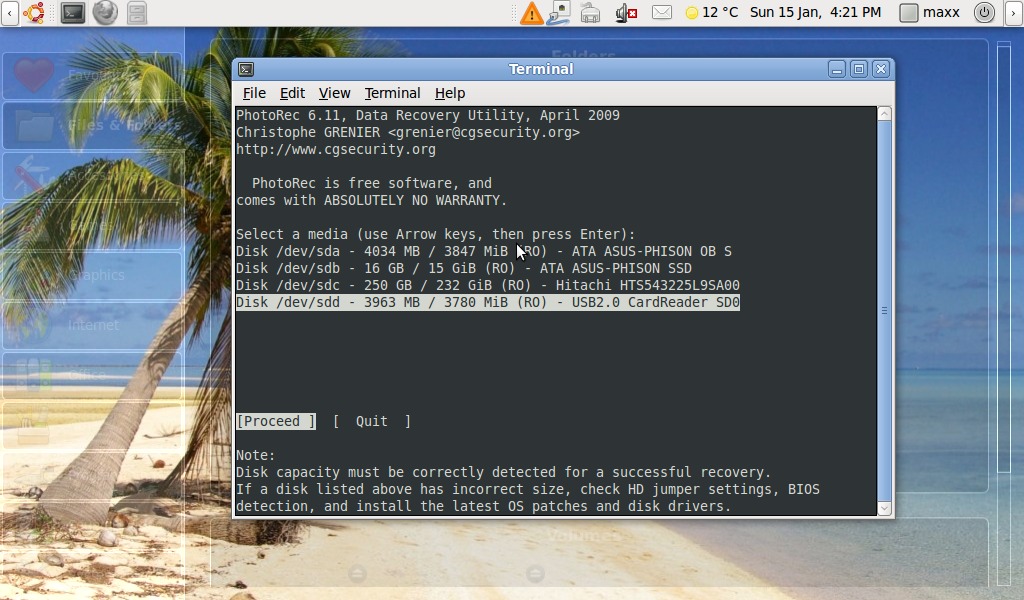
It happened again! I suppose it's because of some hardware problem but my old Sempron 2400, every now and then, makes unreadable a SD card while I'm reading it. This time the damage had been particularly nasty since the recovery method I usually apply (using foremost command) only recovered a handful of of files before stopping because of a “write error”. I so tried another recovery program: Photorec.

Installation and recovery

Photorec is part of the Testdisk disk recovery package it can be installed form Ubuntu's software centre or with apt-get command
sudo apt-get install testdisk
once installed Photorec can be executed by command line
sudo photorec
Photorec has a simple but effective character interface with a wizard-like organization: at first I've been asked for the device to recover

then the partition type, I selected “Intel

Thursday, 15 September 2011

Test drive: Ubuntu 11.10 "Oneiric Ocelot" Beta On the EEEPC 900

Ubuntu's update season is coming again, with it's usual load of discussing (especially about the famous “disappearing” menus). As every season I started my tour of live version testing with the hope this new release will mature enough to convince me to leave the old 10.04 (LTS) I still have on my EEEPC. So I downloaded the new Ubuntu disk image and prepared a bootable USB drive using, as usual, the tool Ubuntu itself provide.

First impressions

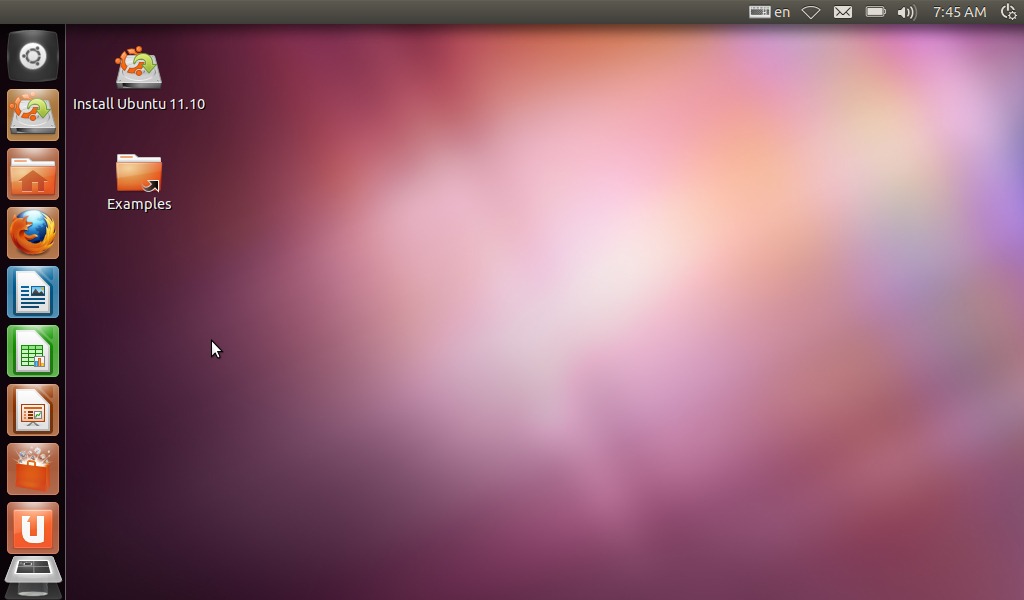
Here is how Ubuntu 11.10 looks like

Tuesday, 18 January 2011

Alternative distributions for the EEEPC: PupEEE

I decided to give a look at some Linux distributions designed for netbooks and alternative to Ubuntu. I'm not going to replace Ubuntu any soon, even if I don't like the latest version, the one I have installed is going to be supported for a long time. I'm simply curious to see what alternatives are available, for netbooks, and to test how they perform on my EEEPC.
The distribution I decided to start with is PupEEE: the EEEPC tailored version of the famous small footprint distribution Puppy Linux.

Download and install

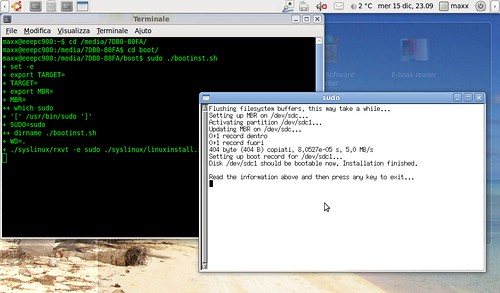
I downloaded the latest version of PupEEE from its download page. Preparing a bootable media from the downloaded zip is a little different from usual but not difficult. Once I extracted the zip file on an empty SD card I simply executed the “bootinst.sh” script placed in the “boot” folder.
Schermata-2

Once extracted PupEEE only takes only about 130MB of disk space (this is a really small footprint), I've been able to install it on an old 256MB SD card that I had left in a drawer with other obsolete or useless things.